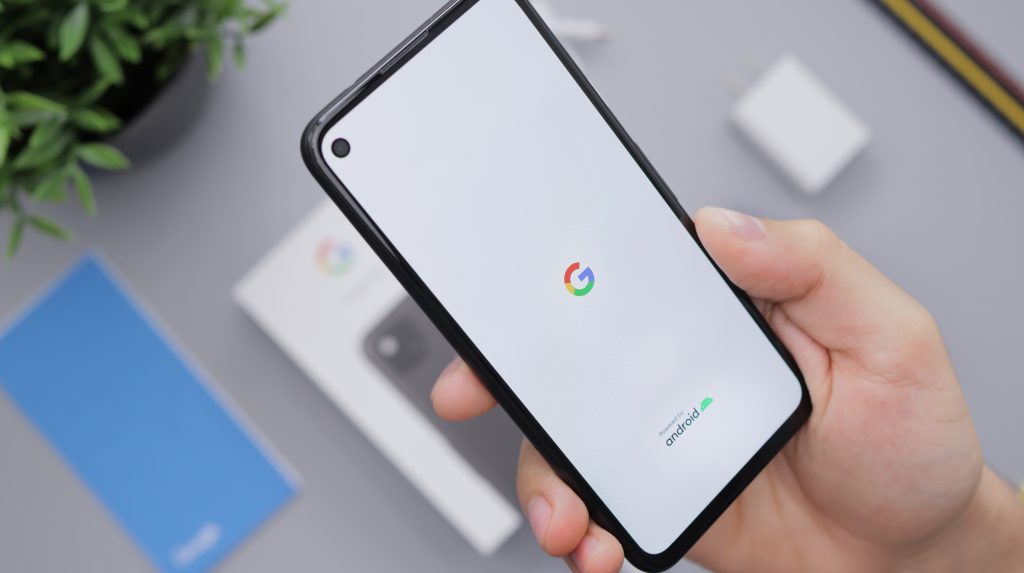
<p style="text-align: justify;">Before technology created an impact on our daily life, our assets were stored as physical evidence, such as film rolls, paperwork, prints, bulks of files worth tons of data and others. Ever since smartphones were developed, everything became easier. A whole bunch of data, pictures, videos, documents, and paperwork can be stored in our smartphones. Hence, we are just one-touch away from viewing important files whenever we need it.</p>
<p style="text-align: justify;">But, we’ve all been part of a scary moment when we witness the loss of our data due to mistakes or accidental clicks. It can be simply a picture, a video, an important data file that you need to produce at work.</p>
<p style="text-align: justify;">No matter what you lose, it is always an unpleasant experience. However, technology has also given us benefits for situations like this. Thus, Android data recovery methods exist.</p>
<p style="text-align: justify;">If you’ve accidentally deleted your data, a file, picture, or a video, then read more to find out how to retrieve it back without any hassle.</p>
<h2 style="text-align: justify;">What Happens When a File Gets Deleted?</h2>
<p style="text-align: justify;">Before you presumably jump to solutions, it is advisable to take a look at what happens to these files when they get deleted from our phone or the SD card memory. Deleting files by mistake is a common problem that the majority of people face and are still facing as you continue to read this.</p>
<p style="text-align: justify;">It’s an honest mistake that makes us remorseful. But, the instant we see our data has been deleted, we automatically start to think if there is any location where the data is transferred to after deleting. Or, more like if there is any Android Recycle Bin like how Windows OS have their own.</p>
<p style="text-align: justify;">Well, for clarity, Android devices do not exactly have a Recycle Bin. But, a feature of Google Apps in your Android device does have a section called “Trash”. So, if you’ve deleted pictures and video from the physical memory of your Android device, they wiped out from the phone and onto the Trash section of Google Photos.</p>
<p style="text-align: justify;">Google Photos sort these images based on time, places, and other variables. So, if you ever want to get these pictures and videos back into your physical memory, all you have to do is transfer them from “Trash” to Phone’s Memory”.</p>
<p style="text-align: justify;">So, what happens to other files like PDF, DOCX, MP3, and other formats? Well, when these files get deleted from the phone memory, they do not exactly get wiped out of the device. In fact, space that was occupied by the file would show it is empty and ready for a replacement. This means that any other further changes or additions will overwrite the space. So, how to get these deleted files back in their original format and quality through <a href="https://uaedatarecovery.com/">Android data recovery</a> software? Let’s find out.</p>
<h2 style="text-align: justify;">5 Easy Ways to Recover Data in Android Devices</h2>
<p style="text-align: justify;">If you want to recover your data back in its original form then follow these methods on Android data recovery below:</p>
<ul style="text-align: justify;">
<li>
<h3>Dumpster Image Video Restore</h3>
</li>
</ul>
<p style="text-align: justify;">If it’s pictures and videos, HTML files, documents, and APK files you want to retrieve back, then Dumpster Image Video Restore is an ideal Android data recovery software for you. One interesting thing about the software is that it permits you to keep a backup for your data and also get it the ones that are accidentally deleted.</p>
<p style="text-align: justify;">To get the software, go to the “Google Play Store” and install it on your device. Make sure to check the Android version compatibility before installing it. If the application is not available on Google Store, then you can find it on the Internet but be careful about visiting the harmful websites.</p>
<ul style="text-align: justify;">
<li>
<h3>GT File Recovery</h3>
</li>
</ul>
<p style="text-align: justify;">GT Recovery is also an Android data recovery application module that can restore lost data, back to your device. But, one great thing about GT Recovery is that it can recover data of various formats. For instance, PNG, JPG, PPT(x), BMP, GIF, DOC(X), MP4, MP3, MOV, AVI, APK, PDF, WAV, RAR, ZIP, EXCEL(X) and GZIP.</p>
<p style="text-align: justify;">To install the application, go to the Play Store, and search for “GT File Recovery”. As soon as you get the result, click on it, and install it right away.</p>
<ul style="text-align: justify;">
<li>
<h3>WhatsApp Chat Backup</h3>
</li>
</ul>
<p style="text-align: justify;">If your data was constricted to Whatsapp, for example, you shared certain files like audios, images, documents, or any other type of files to a person, then a record of it remains during the Chat auto back up.</p>
<p style="text-align: justify;">Open the WhatsApp application on your device and then go to “Settings”. Then, go to Chats and finally, “Chat Backup”. Now, you will have a written date of the time the last backup took place. If it was recent, then simply, go to Play Store, uninstall the application and then install it back again. This time the device will start from the last restoration point.</p>
<p style="text-align: justify;">But, if you’ve overwritten the backup, you can still get your data back. Simply go to your device’s “File Manager” and visit the “WhatsApp” file. From there, go to the file called “Database”. You will come across several files that look like this:</p>
<p style="text-align: justify;">“msgstore-2020-0-05.crypt12”</p>
<p style="text-align: justify;">Now, check the most recent database file through the date and rename the data to anything else. For example,</p>
<p style="text-align: justify;">“Msgstore-1997.crypt12”</p>
<p style="text-align: justify;">Another way to get WhatsApp files is through WhatsApp Media Folder from File Manager. Since WhatsApp always saves a second copy of whatever you send to other contacts, you may be able to find what you’ve shared recently if you’ve accidentally deleted it from the device.</p>
<ul style="text-align: justify;">
<li>
<h3>EaseUS MobiSaver</h3>
</li>
</ul>
<p style="text-align: justify;">EaseUS MobiSaver is an Android data recovery tool that can retrieve the data from the Recycle Bin whereas the Recycle Bin is not accessible by front-end users. However, to use this recovery tool, you’d have to download and install the application on your Windows PC or even Mac PC. Once, it is over, follows the next steps below:</p>
<p style="text-align: justify;">Take your android device and use a USB cable, connect it to the Windows or Mac OS. A prompt will appear on the screen, click on the option called “Start”. Also, before using the tool, you must know about EaseUS MobiSaver’s inability to retrieve data from unrooted smartphones. So, make sure your device has root pathways.</p>
<p style="text-align: justify;">As soon as the tool connects to the device, it will scan through the device producing all the results of your files including the lost ones. Once the scan ends, go through the names of the files which are lost, and select them for restoration. Or, you can also choose an option called “Only Display Deleted Items” to make it easy. Now, hit the “Recover” option. The restoration will begin and by the end of the Android data recovery process, your device will have the deleted files back.</p>
<ul style="text-align: justify;">
<li>
<h3>MiniTool Recovery</h3>
</li>
</ul>
<p style="text-align: justify;">A mini tool Recovery is also an Android data recovery tool that works on certain algorithms to fetch back the lost data such as contacts, call logs, messages, WhatsApp media, documents, etc. But first, you’d have to install the free version of the tool on your Windows or Mac PC. Here’s how to begin:</p>
<p style="text-align: justify;">But, before you begin, keep in mind that the tool does not work if you’ve overwritten the lost data by any new file. So, when you accidentally delete your data, it is advised to stop using the device for any purpose before the recovery process. Also, make sure the device has no history with unrooting and any other <a href="https://www.android.com/enterprise/management/">Android Management tool</a> should be removed.</p>
<p style="text-align: justify;">First, connect the device to the system using a USB cord. Upon detection, select “Recover from Phone”. Now, to start with the USB debugging, do the mentioned steps on your device as shown in the tool. Allow the system to debug the device by choosing an option on the device when it prompts.</p>
<p style="text-align: justify;">Now, the tool will ask you which files to scan, for example, “Gallery, call History, Audio, etc” which falls under the “Deep Scan” category”. You can also opt for “Quick Scan&#8221;, for a quick search of specific files such as lost ones.</p>
<p style="text-align: justify;">Once the scan is complete, you will see the list of thumbnails which is data. Among these, choose the delete ones from the left panel and then select the option called “Recover”. Simply set the storage location and you will have your deleted files back on the system. Now, close the tool and go to the storage location and copy to the device’s storage space.</p>
<h2 style="text-align: justify;">Finally, Enable Android Data Recovery Services&#8230;</h2>
<p style="text-align: justify;">If you are unable to retrieve your data anyhow, you can always resort to the final option, and that is Android data recovery Services. Technicians who carry out the service using many advanced algorithms and high-end software tools that work specifically for recovering data. To find the nearest Android data Recovery Services, all you need to do is research on the list of top services available near your location. Once, you find them, explore their website for authenticity, and book a service.</p>

Loss Of Data? Here’s How to Retrieve Lost Files On Android Devices