<p><img class="aligncenter size-full wp-image-522" src="https://medusamagazine.com/wp-content/uploads/2018/08/instagram-1451137_1280-e1533534290814.jpg" alt="How to Back Up Your Photos When Traveling" width="900" height="600" /></p>
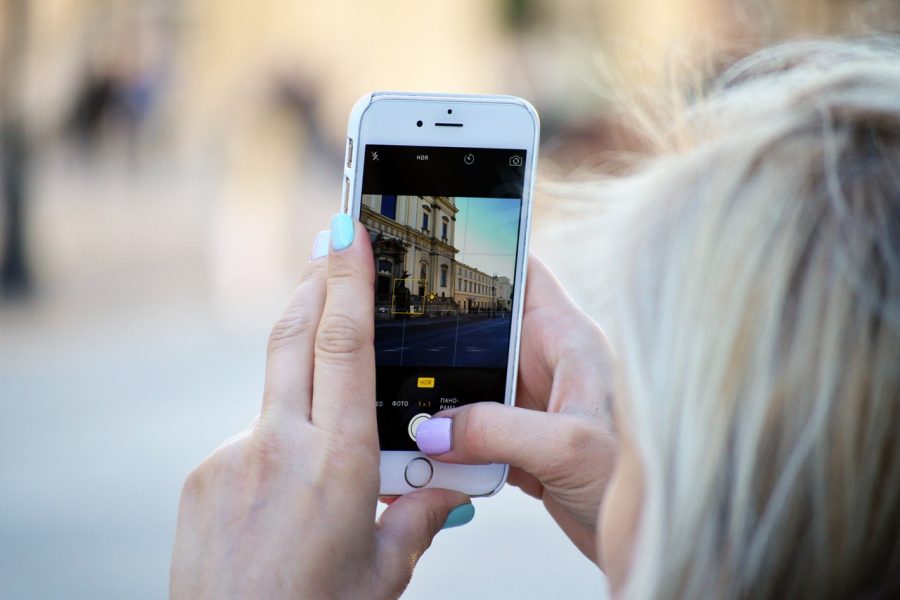
<p style="text-align: justify">Many people who travel take large numbers of photos to commemorate the occasion. Whether you&#8217;re traveling alone, going on a business trip to a town you&#8217;ve never been to or traveling together with your family, there&#8217;s a high chance that you&#8217;ll use your phone or a digital camera to take photos. If keeping memories of your trip is important for you, then you should consider backing up the photos you take to guard them against data loss. Mobile devices, such as digital cameras and smartphones, have the potential to get lost, stolen or damaged while their users are on vacation. By backing up your photos, you&#8217;ll ensure that they&#8217;re kept safe even if something happens to your device.</p>
<p style="text-align: justify">You have several options when it comes to backing up your photos. Here are a few ways you can create a backup copy of them while you&#8217;re on the road.</p>
<h2 style="text-align: justify"><strong>Copy Them to Your Laptop&#8217;s Hard Drive</strong></h2>
<p style="text-align: justify">If you brought your laptop with you on your trip, it can be quite handy when it comes to backing up your travel photos. All that you need to do is to hook up your smartphone or digital camera and copy your photos over to your laptop&#8217;s hard drive. You can do this at the end of every day after you&#8217;re done taking photos. While this is a good way to make a copy of your photos, it isn&#8217;t entirely foolproof, as there&#8217;s a possibility that both your laptop and the device you use to take photos will be lost, stolen or damaged on your trip.</p>
<h2 style="text-align: justify"><strong>Share Them on Social Media</strong></h2>
<p style="text-align: justify">Many people who take photos during their travels are eager to share them with the world. This is why uploading your photos to social media is something almost everyone is doing. You can upload as many photos as you want to your Facebook, Instagram or Twitter accounts. Not only does this let you share your photos with friends and family, but also allows you to have a backup should something happen to the original files.</p>
<p style="text-align: justify">One drawback of uploading photos to social media is that you&#8217;ll give up some privacy by doing so. Therefore, it&#8217;s a good solution only for photos that you don&#8217;t mind sharing with others.</p>
<h2 style="text-align: justify"><strong>Upload Your Photos to the Cloud</strong></h2>
<p style="text-align: justify">One of the best ways of securing photos you&#8217;ve taken while on vacation is by uploading them to the cloud. This has gotten a lot easier, now that many hotels and public places offer free Wi-Fi. If you&#8217;ve used a mobile device like a smartphone or tablet to take the photos, in many cases you can upload them directly to the cloud without requiring a PC.</p>
<p style="text-align: justify">There are many <a rel="nofollow" href="https://www.solvusoft.com/en/windows-10-troubleshooting-guide/chapter12/#one">cloud-based file storage services</a>, such as Microsoft&#8217;s OneDrive. Most of these services give you a generous allotment of storage for free, which should be enough to store all of your photos. You can also organize the photos by creating folders, allowing you to separate them by date or theme.</p>
<p style="text-align: justify">Cloud-based file storage services are an excellent way to backup the media you&#8217;ve created, like photos and videos, whether you&#8217;re on a trip or right at home. Another great thing about these services is that they let you share selected photos with others, all while giving you better privacy controls compared to social media. Once you&#8217;ve uploaded your photos to the cloud, you can view them with any web browser or download them to a local storage device.</p>
<p style="text-align: justify">Taking photos while traveling is very popular. But if your pictures are important to you, don&#8217;t forget to create a backup copy of them. This will ensure you don&#8217;t lose your precious memories should something happen to your camera or smartphone.</p>

How to Back Up Your Photos When Traveling